


This article was machine translated from Make Germany 7/2025 with light editing by David Groom.
NanoPy is the standard IDE for Oxocard projects. However, thanks to the ESP32 microcontroller at the heart of the Oxocard, programming with C++ via the Arduino IDE is also a viable development option. This offers advantages for both beginners and experienced programmers, as this article demonstrates.
The term “Oxocard” refers to an entire family of modularly designed microcomputers in credit card format. The Oxocard system, designed as a development board, was created to provide a playful introduction to basic embedded development. By default, programming is done via the NanoPy IDE using the NanoPy scripting language, which uses simplified syntax and different libraries than standard Python.
The Oxocard Connect device comes with a display and a joystick, but without any sensors. However, cartridges can be plugged in, which serve to expand the system with sensors, actuators, and other features.

Wi-Fi, 2MB PSRAM, 8MB flash memory, USB-C port,
joystick, and LCD display.
Oxocard Connect Cartridges
The available Oxocard cartridges connect to the Oxocard Connect via an edge connector (Figure 6). A small screw can be used to more durably affix plugged-in cards to the Oxocard Connect.
In addition to the standardized contacts, the different cartridges have another thing in common: Each cartridge comes with a 512-kbit I²C bus EEPROM that can store programs and data (Figure 6).
A USB-C cable is used to upload programs. More practical are the gooseneck USB cables also offered by the Oxocard manufacturer Oxon. These allow the Oxocard Connect, including connected cartridges, to be attached to computers, monitors, USB chargers, or power banks like a flexible swivel arm and positioned as desired.

and a joystick that responds to both pressure and movement in all four directions.
Arduino IDE
For programming via the Arduino IDE in C/C++, a variety of existing Arduino libraries can be used, covering almost every application area. It is possible to use both the newer version 2.3.x and the older, but still widely used, version 1.8. For this article, we used versions 1.8.19 and 2.3.6.
Links to download both versions can be found at https://www.arduino.cc/en/software/. The board support package (BSP) for ESP32 from Espressif must be installed via the Arduino IDE’s board manager. The current BSP version at time of writing is 3.3.0. The Oxocard Connect 2 uses the ESP32-PICO-V3. In the Arduino IDE, “ESP32 Dev Module” must be selected as the controller. After that, various options are available for controlling and programming the Oxocard, its peripherals, and cartridges.

IDE and the older release 1.8.19 shown here are suitable for programming the
Oxocard.
Adafruit Libraries
To use the Oxocard’s display, the “Adafruit GFX Library” (version 1.12.3) must be installed via the Library Manager, which provides basic graphics functions. In your own programs, the definitions must be included via #include
#include
#include
#include
In addition, #include
The Adafruit libraries offer a simple way to access all areas of the Oxocard Connect. However, for graphical applications and game programming, the graphics output of the Adafruit libraries is somewhat slow. Faster solutions are available, such as the TFT_eSPI_ES32Lab by Bodmer.

games or menu controls can be formulated with just a few lines of code.
Joysticktest.ino
#include
#include
#include
#include
#define TFT_MOSI 13
#define TFT_SCLK 14
#define TFT_CS 15
#define TFT_DC 27
#define TFT_RST 4
#define TFT_BL 19
#define JOY_UP 39
#define JOY_RIGHT 37
#define JOY_DOWN 38
#define JOY_LEFT 36
#define JOY_CENTER 2
#ifndef HSPI
#define HSPI 1
#endif
SPIClass hspi(HSPI);
Adafruit_ST7789 tft = Adafruit_ST7789(&hspi, TFT_CS, TFT_DC, TFT_RST);
bool last_up = false, last_down = false, last_left = false, last_right = false, last_center = false;
void drawJoystickState(bool up, bool down, bool left, bool right, bool center) {
int y = 46;
tft.fillRect(0, y, 240, 200, ST77XX_BLACK);
tft.setTextSize(2);
tft.setTextColor(ST77XX_WHITE, ST77XX_BLACK);
tft.setCursor(10, y + 0); tft.print("UP: "); tft.print(up ? "X" : " ");
tft.setCursor(10, y + 30); tft.print("DOWN: "); tft.print(down ? "X" : " ");
tft.setCursor(10, y + 60); tft.print("LEFT: "); tft.print(left ? "X" : " ");
tft.setCursor(10, y + 90); tft.print("RIGHT: "); tft.print(right ? "X" : " ");
tft.setCursor(10, y + 120); tft.print("CENTER: "); tft.print(center ? "X" : " ");
}
...
Bodmer Library
One way to improve graphical performance is with the TFT_eSPI_ES32Lab library by Bodmer (version 2.5.43 at time of writing), which can be installed via the Library Manager. The standard user definitions in the “User_Setup_Select.h” file in the library directory (usually located under Documents\Arduino\libraries in Windows) of TFT_eSPI_ES32Lab must be modified, and the entry #include
// Oxocard Connect V2
#define TFT_CS 15
#define TFT_DC 27
#define TFT_RST 4
#define TFT_MISO 12
#define TFT_MOSI 13
#define TFT_SCLK 14
The other pin assignments, starting from #define TFT_RGB_ORDER TFT_RGB to #define TFT_RST -1, must be commented out. The already modified library is available as a ZIP file for download in the repository for this article: https://github.com/MakeMagazinDE/OxocardArduinoIDE
This can be integrated via the Arduino IDE using the menu “Include Library -> Add .ZIP Library”.
If a TFT_eSPI library is already installed, it must be uninstalled first. Note that a library update will overwrite these modifications. The modification of the TFT_eSPI library described here is required for all program examples that use the display.
Please note that our example program uses the EEPROM to check whether a cartridge is inserted. Any cartridge will work for this purpose. If the cartridge is missing, only a flickering image will be visible on the Oxocard display.
The adjustment of the remaining peripheral pins for I2C, UART, and GPIOs of the Oxocard Connect is done in the declaration file pins.h. This file must be included in the header section when using the Bodmer library. For each example program, the corresponding, already modified pins.h file is located in the directory with the respective sketch. The original file is located at “User_Setups/Setup25_TTGO_T_Display.h”.
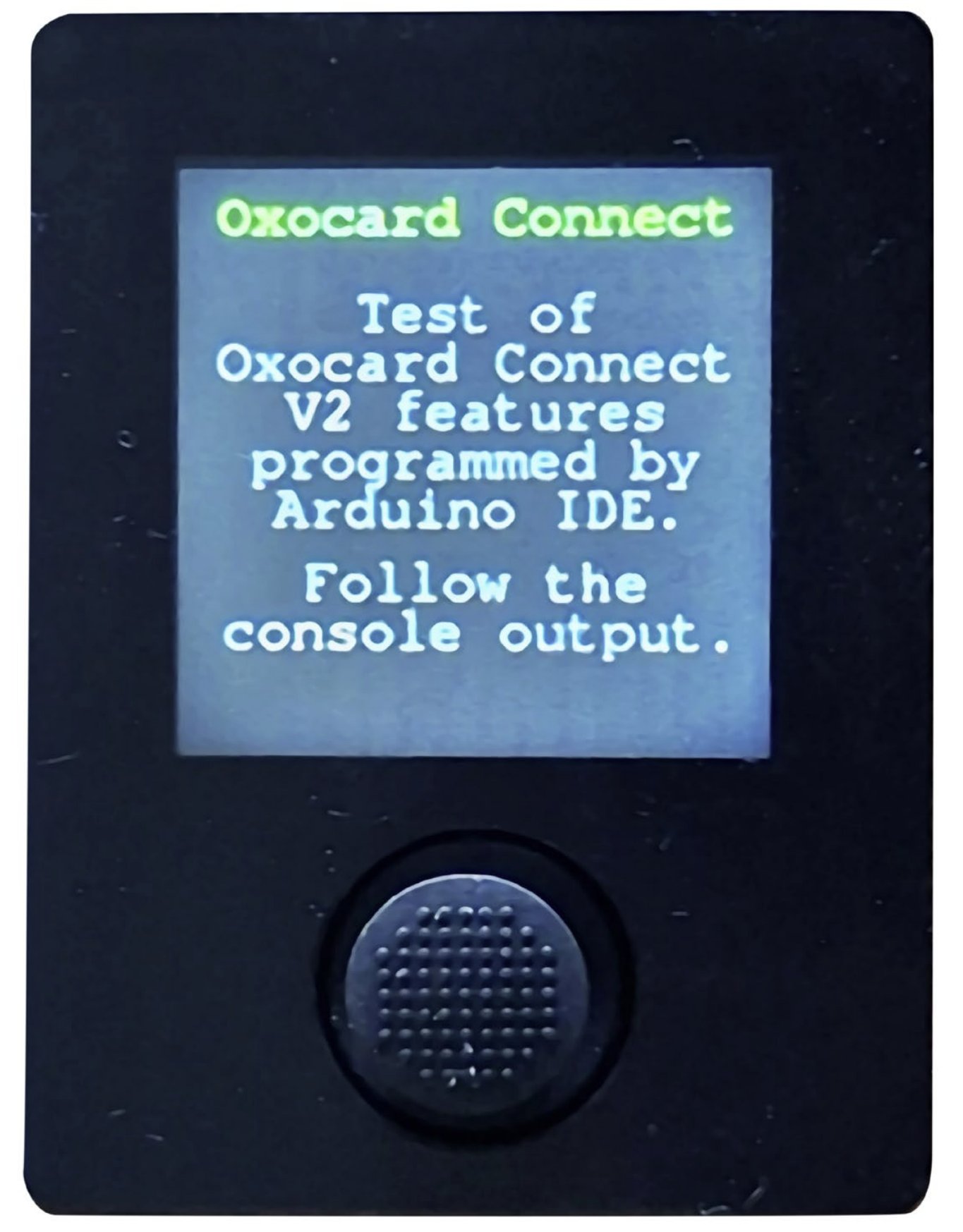
The test program also outputs some messages via the serial interface. Therefore, it is important to set the baud rate in the IDE’s serial monitor to the value used by the sketch, i.e., 115200.

Oxocard Connect Example Applications
The following sections show the basic structure for Oxocard Connect programs. The complete listings of the following sketches, as well as a collection of example programs, can be found in the GitHub repository. The range of examples covers different areas and extends from simple basic structures for querying joystick and sensor data to retrieving weather information via the internet.
The program BBTest.ino checks for a connected cartridge and displays a status message on the LCD. It also tests the EEPROM, the joystick, and the display on the Oxocard Connect. The display is a 240 × 240 LHT133T-IG01 TFT with an ST7789VW driver.
The following declarations must be included for the BBTest.ino program:
#include "pins.h"
#include "SPI.h"
#include "TFT_eSPI.h"
#include
#include "SparkFun_External_EEPROM.h"
The “SparkFun External EEPROM Arduino Library” (version 3.2.11) must be installed via the library manager.
BBTest.ino
#include "pins.h"
#include "SPI.h"
#include "TFT_eSPI.h" // v2.5.43 Adaption to Oxocard Connect V2 required
#include
#include "SparkFun_External_EEPROM.h" // v.3.2.10
// Use hardware SPI
TFT_eSPI tft = TFT_eSPI();
#define EEPROM_ADDRESS 0b1010000 //0b1010(A2 A1 A0)
ExternalEEPROM myEEPROM;
void setup()
{
    pinMode(USR_BTN1, INPUT);
    pinMode(USR_BTN2, INPUT);
    pinMode(USR_BTN3, INPUT);
    pinMode(USR_BTN4, INPUT);
    pinMode(USR_BTN5, INPUT);
    pinMode(IO20, OUTPUT); digitalWrite(IO20, LOW);
    pinMode(IO25, OUTPUT); digitalWrite(IO25, LOW);
    pinMode(IO26, OUTPUT); digitalWrite(IO26, LOW);
    pinMode(IO32, OUTPUT); digitalWrite(IO32, LOW);
    pinMode(IO33, OUTPUT); digitalWrite(IO33, LOW);
    pinMode(LCD_LED, OUTPUT); digitalWrite(LCD_LED, HIGH); // LCD background light on
    Serial.begin(115200);
    delay(1000);
    Serial.println("Oxocard Connect V2 Breadboard Test");
    tft.init();
    tft.setRotation(1);
    tft.fillScreen(TFT_BLACK);
    Wire.begin();
    myEEPROM.setMemoryType(512);
    // Valid types: 0, 1, 2, 4, 8, 16, 32, 64, 128, 256, 512, 1024, 2048
...

Interchangeable Cartridges
When working with different cartridges, cartridge detection can be important. The EEPROM located on each cartridge can be used to identify a specific cartridge. Three 32-bit entries are available for hardware ID, hardware version, and firmware version, followed by a device name of up to 30 bytes.
void loop()
{
    Serial.println("\nOxocard Connect Cartridge Detection");
    if (myEEPROM.begin() == false)
        Serial.println("No cartridge detected.");
    else
    {
        Serial.println("Cartridge detected.");
        for (uint16_t x = 14; x < 32 * 4; x++)
        {
            char c = myEEPROM.read(x);
            if (c == 0) break;
            else Serial.print(c);
        }
        Serial.println(" Cartridge connected.");
    }
    delay(5000);
}
If you flash the Oxocard from the Arduino IDE, you will overwrite the original firmware. The NanoPy development environment can be used again by restoring the original firmware via the web installer (link in the information section) (Figure 7).

Conclusion
The Oxocard Connect is a versatile learning tool that facilitates entry into electronics and programming. Thanks to the modular cartridge system and the choice between NanoPy and the Arduino IDE, both beginners and advanced users can experiment with it in a practical way. The ability to choose between C/C++ and Python as programming languages makes the system particularly attractive and offers added value compared to a pure ESP32 development board.
